Step 1
Open the Discord Developer Portal
Head to the Discord Developer Portal and sign in with your Discord account. Once you're in, look for the "New Application" button in the top-right corner and click it.
Open Developer Portal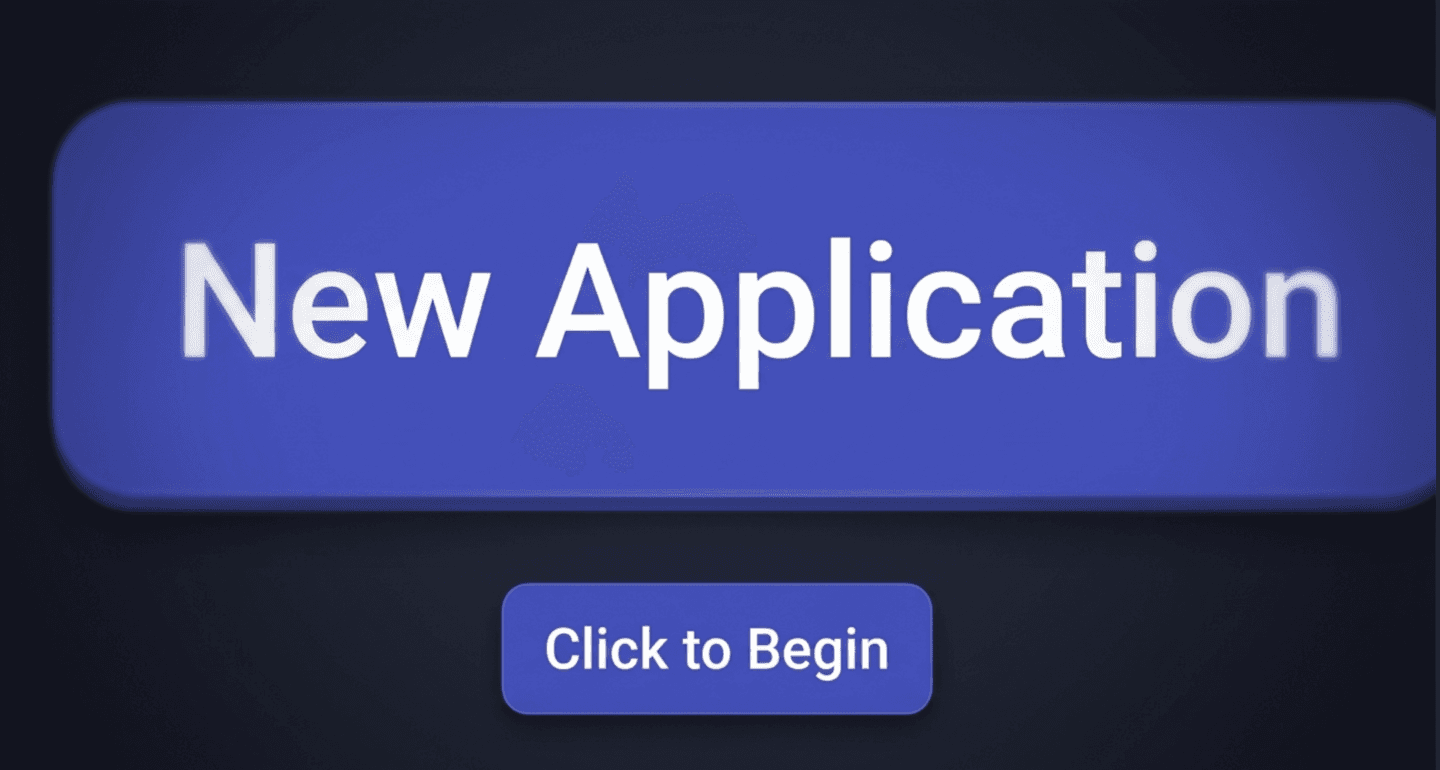
Follow these 5 steps to create your bot, get your token, and configure the right settings.
Head to the Discord Developer Portal and sign in with your Discord account. Once you're in, look for the "New Application" button in the top-right corner and click it.
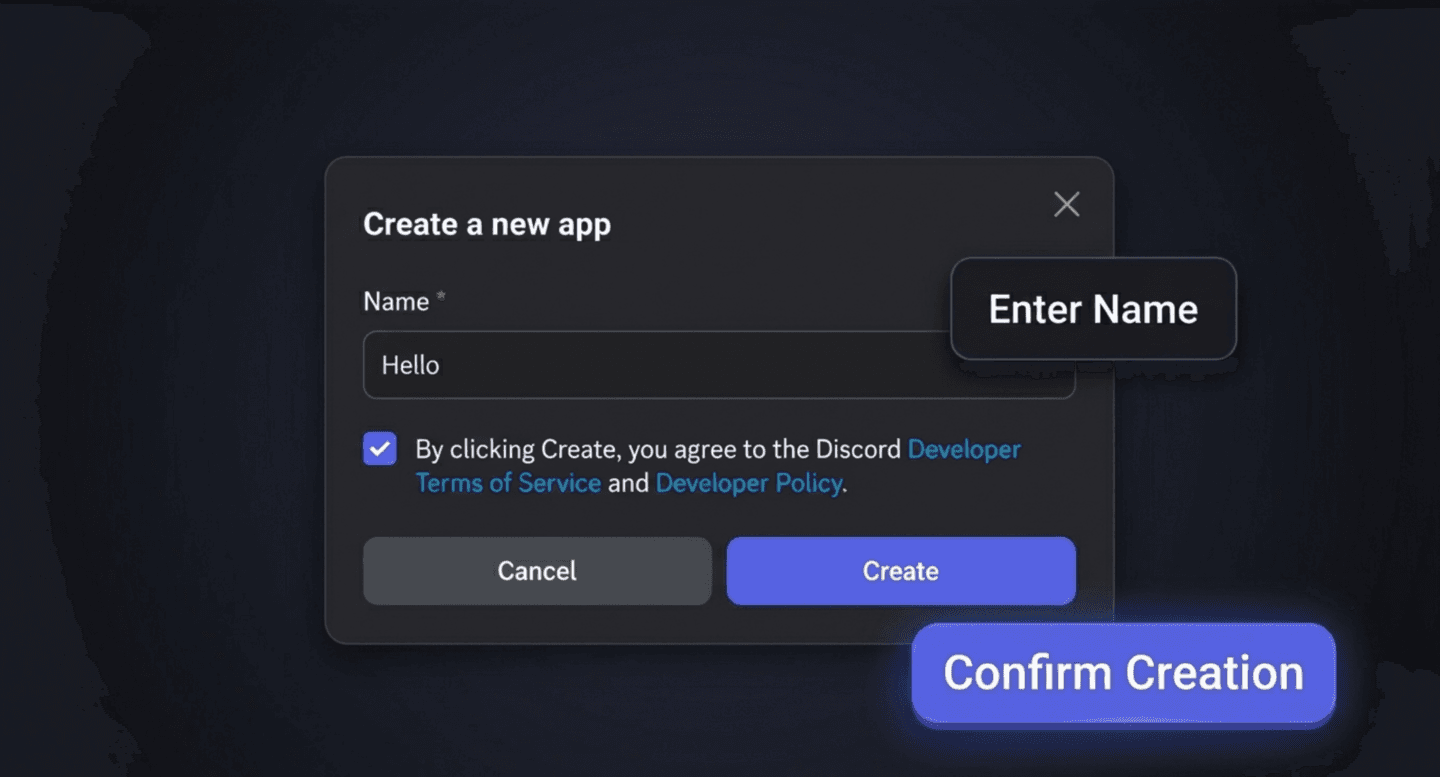
Open Developer PortalA dialog will appear asking you to name your application. Enter the name you want for your bot (you can change it later). Check the box to agree to Discord's Developer Terms of Service, then click the "Create" button.
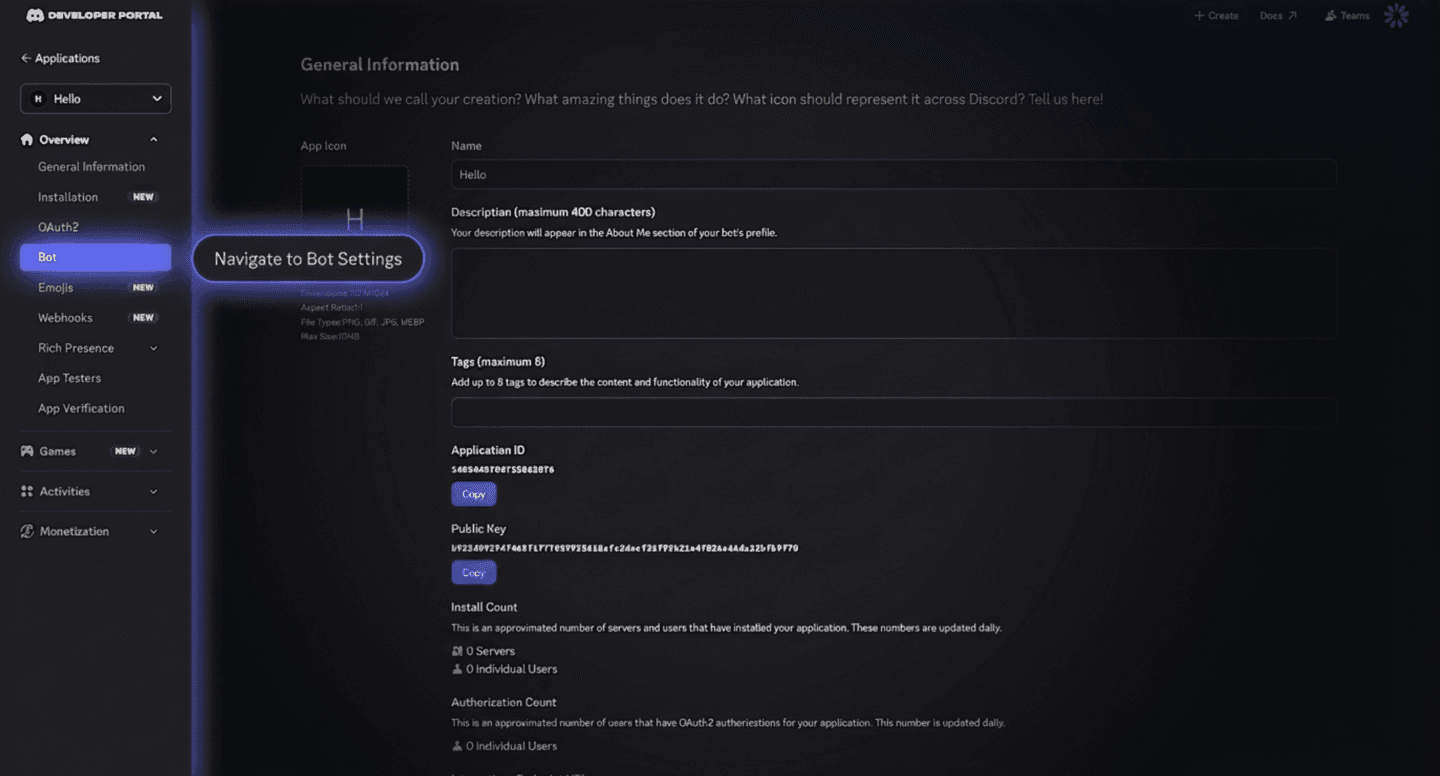
After creating the application, you'll land on the General Information page. In the left sidebar, find and click the "Bot" tab to access your bot's settings. This is where you'll find your token and configure intents.
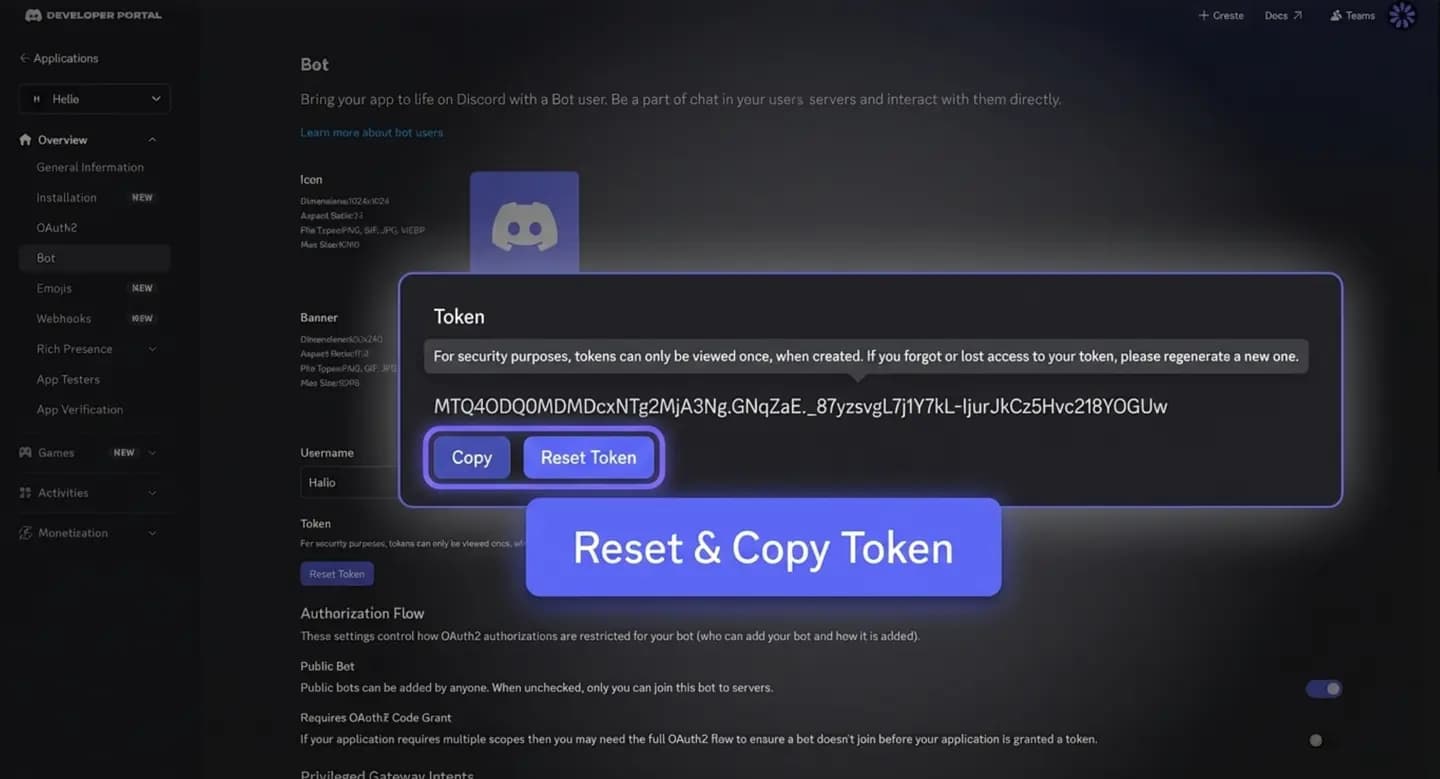
On the Bot page, find the Token section. Click "Reset Token" to generate a new token. Discord may ask you to complete 2FA verification for security. Once the token appears, click "Copy" immediately.
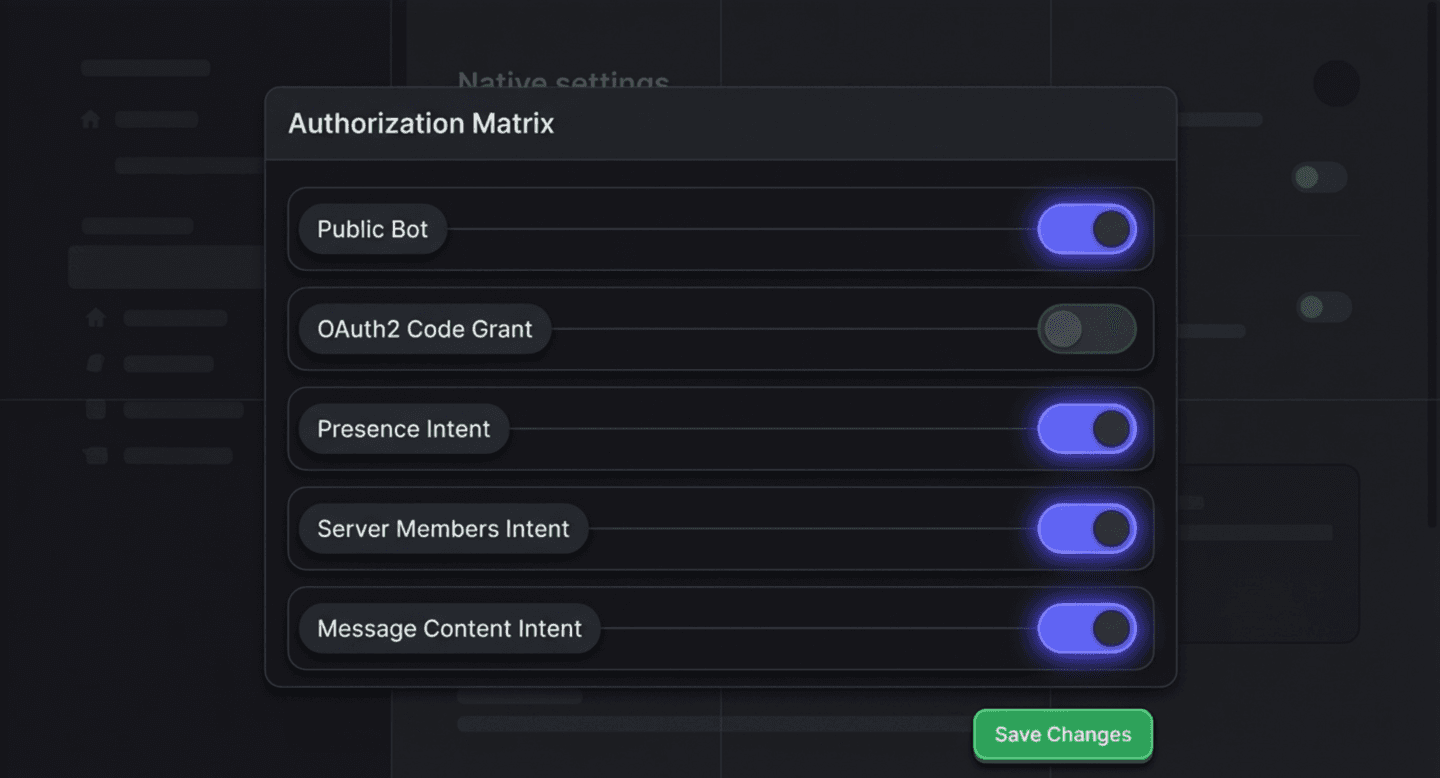
Scroll down on the same Bot page to find the Privileged Gateway Intents section. Enable the intents your bot needs. For BotNinja, here are the recommended settings:
Your bot application is created, your token is ready, and intents are configured. You can now paste your token into BotNinja to bring your bot to life.